Login to the application
In order to access the topsystem application, you first have to start your internet browser (e.g. Microsoft Internet Explorer). By default, the web address for opening the application should be stored in your Bookmarks. If this is not the case, please ask your system administrator. Left-click the menu Bookmarks from the menu bar and choose the corresponding entry. The browser connects to the central database server and the login mask is opened.
Alternatively, a start icon might be provided directly on your Windows desktop. Should neither a Bookmark entry nor a start icon be available, please contact your system administrator for getting access to the software.
Please note: Depending on the stage of installation of your internet settings, you might receive a notice stating that an external applet has to be executed on your local computer first.
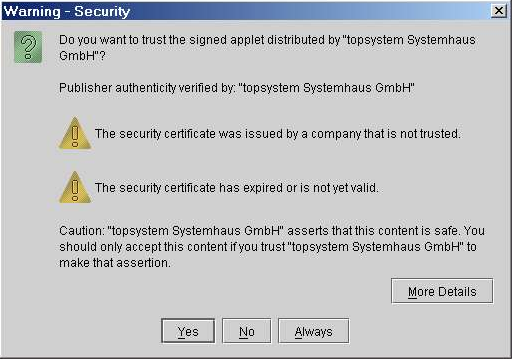
The execution of this applet is necessary to allow the topsystem applications to access certain resources on your local computer – e.g. to store topsystem application data in the clipboard which can then be pasted into other applications like Microsoft Excel, or to access printers for creating printouts of reports or flight schedules etc.
Official applets published by topsystem GmbH are authenticated like shown in Safety warning at program start above.
By clicking the button Yes, the applet is allowed to be executed once. Clicking the button Always will automatically allow the execution every time you start the topsystem software. Clicking the button No will prevent the applet to be executed, which leads to a reduction of functions provided by the topsystem software!
The actual login to the system is done in the following interface mask:
